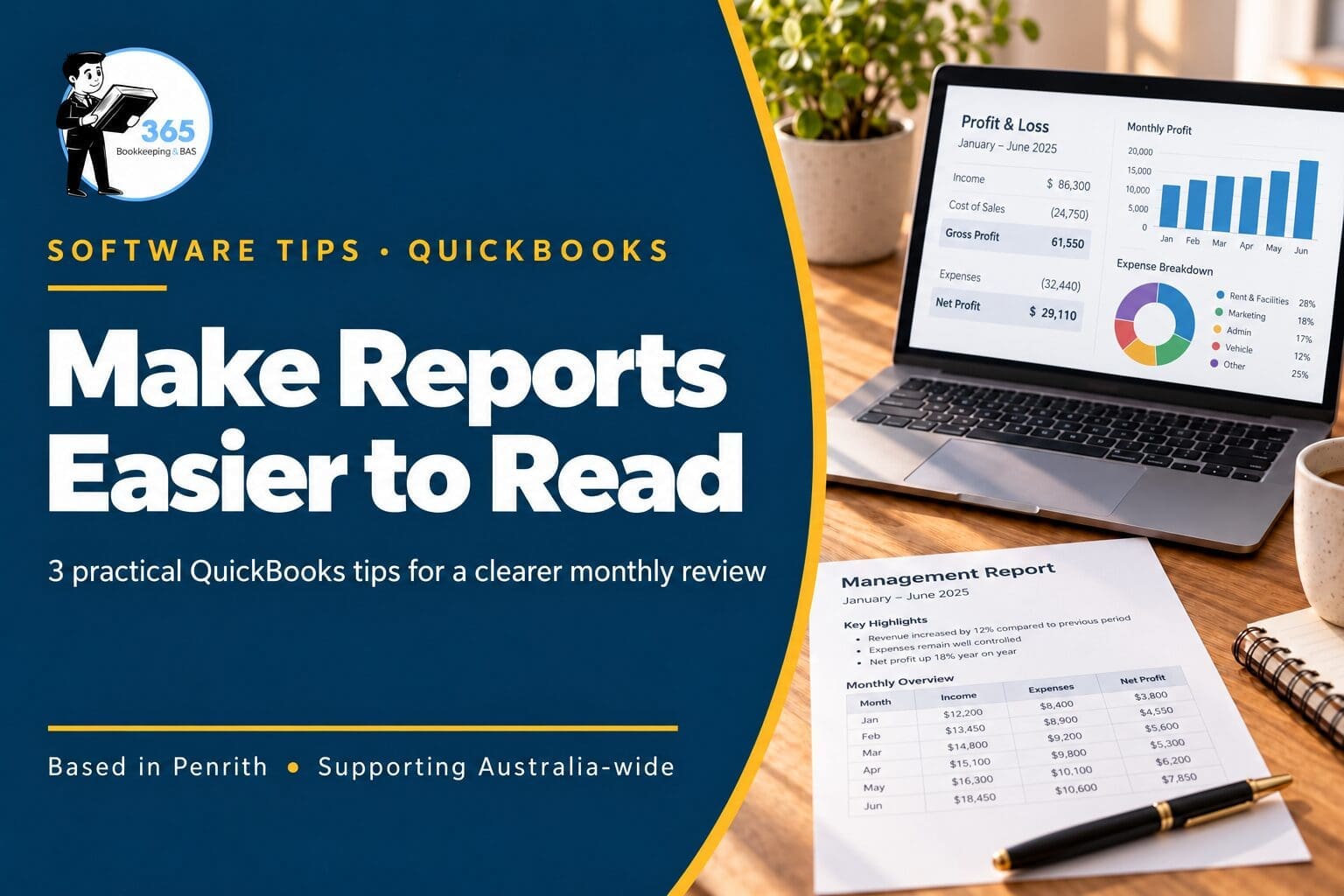
3 QuickBooks Reporting Tips for a Clearer Monthly Review
QUICKBOOKS REPORTING TIPS · AUSTRALIA
Make your monthly review easier with consistent dates, useful comparisons and a readable report to keep.
These QuickBooks reporting tips help you answer three simple questions: what period am I reviewing, what changed, and can I explain the result later? A report is more useful when its settings are clear.
This guide covers QuickBooks Online Australia in a web browser. It distinguishes modern and classic report views. The steps use standard reports; they do not require the Advanced-only Custom Report Builder. Available reports and controls depend on your subscription and report view. Use an account with access to the report. If an option is unavailable, check your edition and permissions rather than changing another user’s access.
For help maintaining the records behind the numbers, see our ongoing bookkeeping services.
1. Start QuickBooks reports with consistent dates and basis
Before reading a total, check the reporting period and accounting basis. Otherwise, two reports that appear to cover the same month may tell different stories.
- Open Reports → Standard reports. Search for the report you need, such as Profit and Loss.
- Choose the period you intend to review. For a completed month, use its first and last dates rather than a changing year-to-date range.
- In modern view, check the Cash/Accrual toggle. Keep the basis consistent with the report you are comparing and note it in your review.
Do not change the company’s default accounting method just to explore a report. Ask your bookkeeper which basis suits the review if you are unsure. Our explanation of why bank balance and profit differ helps put those figures in context.
Fictional example: A consultant compares September with August. They first confirm that both reports cover complete calendar months and use the same basis. That check prevents a partial month from looking like a sudden downturn.
Source: Intuit’s modern report settings and accounting-basis guide.
2. Compare QuickBooks results over equivalent periods
A single total rarely explains a change. A period comparison puts the earlier amount beside the current amount so you can investigate the difference.
- For the classic view, open Profit and Loss from Standard reports, then select Customise.
- Expand Rows/Columns. Under Columns, choose the period grouping you need, then select Previous year for a year-on-year comparison.
- Select Run report. If you also choose a percentage display, check its label: a percentage of income is different from a percentage change between periods. In modern view, comparison controls appear in the report header under Compare to.
Use equivalent date ranges and the same basis. Also, read the dollar change alongside the percentage. A large percentage on a small expense may matter less than a modest change in your biggest cost.
Fictional example: Monthly software costs rise from $1,200 to $1,500. The increase is $300, or 25% ($300 ÷ $1,200). The owner checks whether a new subscription explains it before changing the budget.
To turn those findings into a regular routine, use our month-end bookkeeping checklist. For a different planning question, our break-even guide for service businesses explains how costs affect the sales needed to cover them.
Source: Intuit’s common custom reports and period-comparison instructions.
3. Keep a readable QuickBooks report snapshot
Once you have reviewed the report, keep a copy with its settings visible. This gives your next discussion a clear starting point, even if the live report changes after later bookkeeping entries.
- In modern view, select the Print icon, then Print or Save as PDF. In classic view, use Export/Print → Print/Save as PDF.
- Check the preview. Use landscape orientation when columns are cramped, and adjust scale or margins so amounts remain readable.
- For a report that spans several pages, use Show report headers on all pages. Confirm that the saved copy shows the report name, dates and basis.
Add a short review note separately: what you noticed, which transaction needs checking and who will follow it up. A snapshot records what you reviewed; it does not lock the underlying accounts or prove that every entry is correct.
Fictional example: An owner saves September’s report and notes an unexplained $300 increase. After the bookkeeper checks it, they save a revised copy with a clear version label.
If another professional needs those records, our guide to changing bookkeepers and handing over records explains why access and organised files matter.
Source: Intuit’s report search, export and print instructions.
Use these QuickBooks reporting tips as part of a consistent monthly review. For support with the underlying bookkeeping, compare our bookkeeping packages and pricing.
Reviewed 17 October 2026 against the linked Intuit Australia documentation. General information only, not financial, taxation or legal advice. Examples are fictional; steps were checked against documentation, not tested in a customer’s QuickBooks file.
If you need 365 Bookkeeping and BAS to assist you with bookkeeping, we’re here to help.