AI for tradies: How a finished job becomes a draft invoice
The plumbing job is done and the tools are back in the ute. The invoice still needs to be written, and there’s an extra tap on the job that never made it onto the quote. Before the office can send the invoice, someone needs to check what was fitted, what the customer agreed to pay and which customer record to use.
This is where AI for tradies could help. A supervisor’s end-of-day note gives the office a starting point for a draft invoice. Follow a fictional plumbing job from the accepted quote through to the office check and see what happens when a variation still needs written approval.
What AI for tradies can draft and what a person checks
An AI drafting tool can turn a dictated job note into a clear invoice description. It can pick out that the crew replaced a kitchen mixer and two basin taps, then describe the extra laundry tap as a separate item. The approved quote supplies the agreed price for the original work. The note tells the office what happened on site and what to check against the quote.
Software rules handle when data moves. For example, marking a job complete could trigger a step that passes the job reference to the accounting software. A scheduled step that looks for completed jobs at the end of the day is also a software rule. Neither the AI nor the rules can approve a price or a variation. A nominated person checks the draft invoice and decides whether it can proceed.
In the proposed pilot, a supervisor dictates the completed work and any variations. The workflow prepares an invoice description, attaches the job reference and flags missing approval. The nominated person checks the draft invoice against the accepted quote before it proceeds.
Worked example: From approved quote to draft invoice
Fictional example. Ridgeline Plumbing (fictional) has an approved quote, Q-2041, for Sam Taylor (fictional) at 18 Copperleaf Lane (fictional address). Ridgeline is registered for GST. Sam accepted the quote before work began. It covers supply and installation of one kitchen mixer and two bathroom basin taps for $1,450 including GST. If you use Xero, see the guide to recording quote acceptance in Xero.
While the plumber is on site, Sam asks for the laundry tap to be replaced as well. The plumber gives a verbal price of $185 including GST and fits the tap. When the supervisor dictates the job note at the end of the day, there’s still no written approval for the extra work on the job record.
Job 2041, Taylor, done. Kitchen mixer and both basin taps swapped. Customer asked for the laundry tap while we were there. Did that too and told her $185. Old taps are in the van.
This pilot example is illustrative. The connection between your job app and accounting software has not been tested and depends on the apps and subscription plans your business uses. Here’s the draft invoice the proposed workflow would prepare for the office.
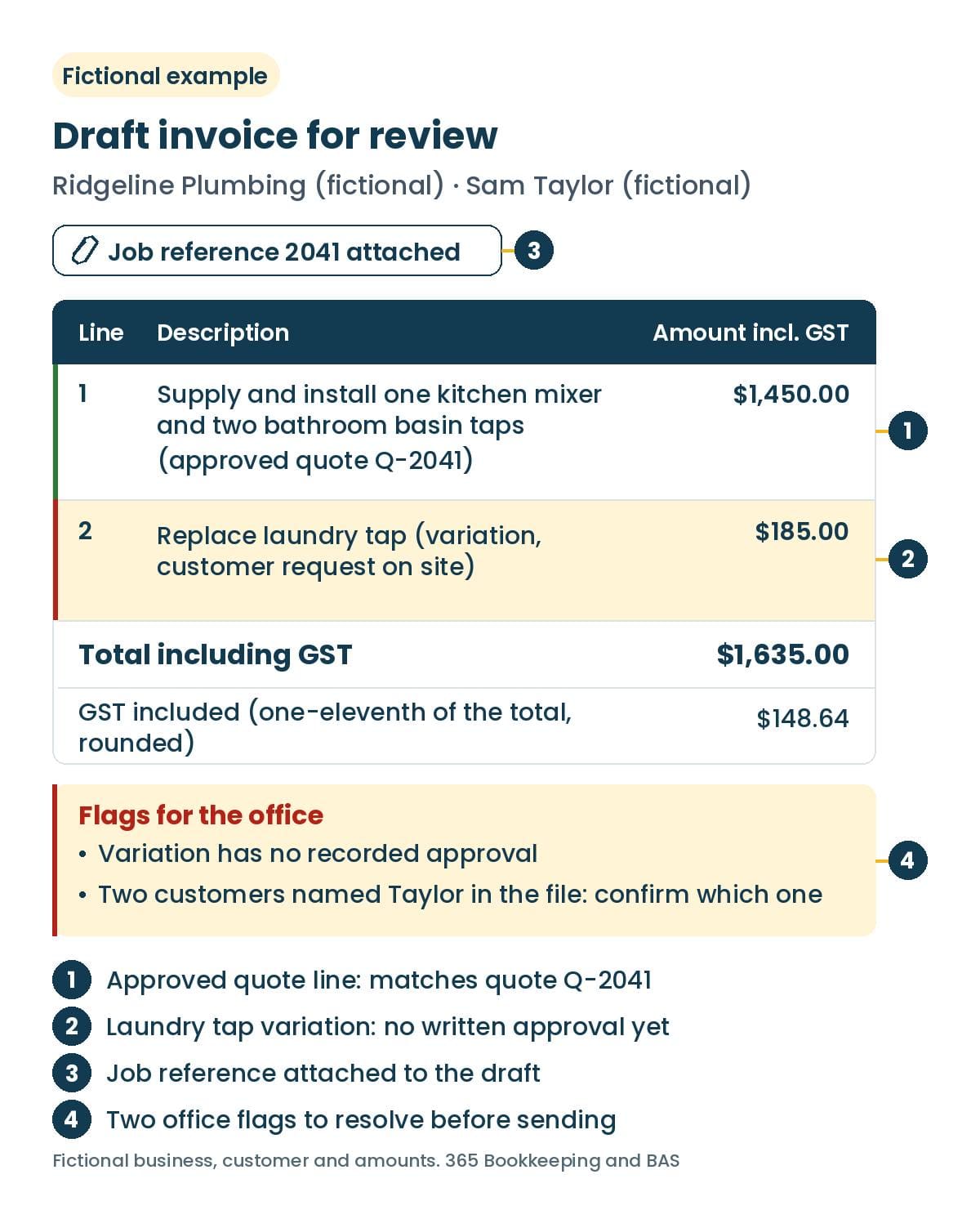
Draft invoice for review · Job reference 2041 attached
| Line | Description | Amount including GST |
|---|---|---|
| 1 | Supply and install one kitchen mixer and two bathroom basin taps (approved quote Q-2041) | $1,450.00 |
| 2 | Replace laundry tap (variation, customer request on site) | $185.00 |
| Total including GST | $1,635.00 | |
| GST included (one-eleventh of the total, rounded) | $148.64 |
Flags for the office
- Variation has no recorded approval
- Two customers named Taylor in the file: confirm which one
The office check before the invoice is sent
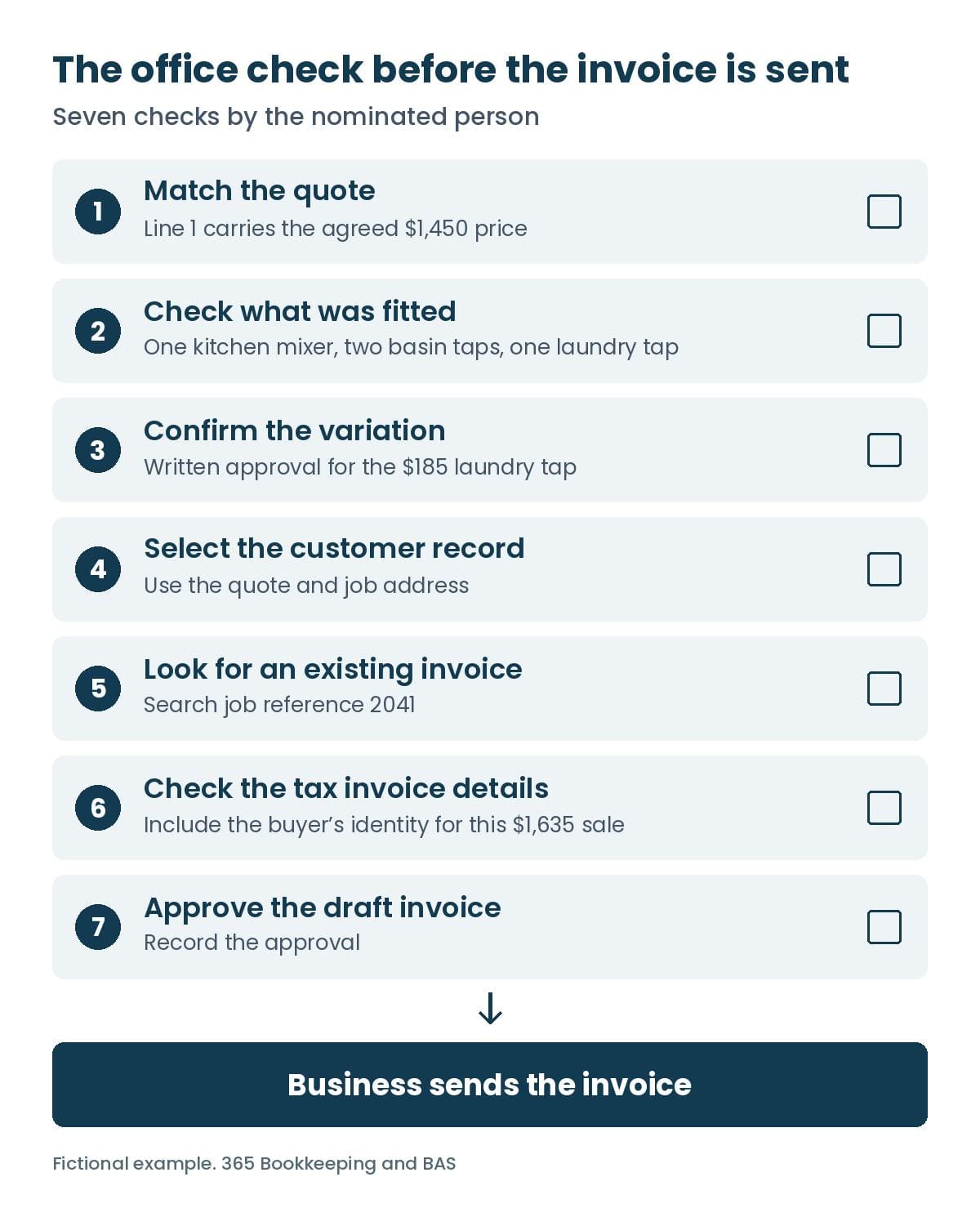
At Ridgeline Plumbing, the office manager is the nominated person. She opens the job record, accepted quote and draft invoice together and works through these checks.
- Match the quote. Compare line 1 with accepted quote Q-2041 and confirm that it carries the agreed $1,450 price.
- Check what was fitted. Match the quantities to the job note and confirm one kitchen mixer, two bathroom basin taps and one laundry tap.
- Confirm the variation. Check the $185 price with the plumber and get written approval from Sam. In this example Sam texts back, “I approve the laundry tap replacement at $185.” Save the reply to job 2041.
- Select the customer record. Use the accepted quote and job address to confirm which Taylor is the customer, then select that record.
- Look for an existing invoice. Search the accounting software for job reference 2041 and check whether an earlier trigger already created a draft invoice or an invoice.
- Check the tax invoice details. Review the invoice fields, including the buyer’s identity for this $1,635 sale.
- Approve the draft invoice. Once the checks are complete, record the approval. The business then sends the invoice.
If Sam declines the variation or written approval is still outstanding, the office manager removes the laundry tap line from the draft invoice and holds it back from sending. She records why on the job so the office can see what happened to the charge.
For a taxable sale under $1,000, a tax invoice needs seven details. It must show that it is intended to be a tax invoice, identify the seller, give the seller’s ABN and the issue date, briefly describe the items with their quantities and prices, show the GST amount (or say “Total price includes GST” where GST is exactly one-eleventh of the price), and show the extent to which each sale is taxable. For a taxable sale of $1,000 or more, it must also show the buyer’s identity or ABN. That’s why the office manager checks Sam’s identity on the $1,635 invoice. If a customer asks for a tax invoice, the business must provide it within 28 days unless the sale is $82.50 including GST or less. ATO guidance on tax invoices.
What can go wrong
The pilot needs to cover four cases: an ordinary job that produces one draft invoice for review, a variation that needs approval, an ambiguous customer match and a duplicate trigger. In the Taylor example, the customer flag tells the office manager to select the record. If a job completion triggers the process twice, she checks the job reference in the accounting software and reviews any existing draft invoice before proceeding.
A failed sync could show up as an error or as a completed job with no draft invoice in the accounting software. The office manager checks whether a draft invoice exists before retrying and passes the job reference and any error details to whoever manages the connection.
Where 365 Bookkeeping and BAS can help
365 Bookkeeping and BAS is based in Penrith, Western Sydney, and supports businesses Australia-wide. Through admin automation and AI setup, we can talk through your job-to-invoice process and assess whether a connection between your job app and accounting software suits your apps and subscription plans. Assessing an app connection like this sits under the Advanced setup package. The voice-note workflow in this article is a pilot being tested, not yet an available service.
For a one-off setup covering one invoice template, invoice terms and reminders in your own software, see invoicing and reminders setup. Your business operates those reminders.
If you need regular invoice creation, monthly accounts receivable support covers client-approved customer invoice creation and aged-receivables reporting only. It excludes payment reminders, debtor follow-up and debt collection. Invoice sending and customer statements require a separate agreement.
To keep every extra on a job traceable from request to invoice, see our guide to keeping job variations visible.
Discuss your job-to-invoice setup
Bring one recent job, its quote and the invoice you sent. We can use them to talk through what your office needs in a draft invoice and where approval fits before your business sends it.